Can ChatGPT See Your Website? How to Check for Blocks
AI assistants rely on accessible information to find and recommend websites, and many sites block them without knowing it. Here's what keeps ChatGPT, Google's AI and others out, and how to check your site.
More and more people skip search results and ask an AI assistant instead: "What's a good plumber near me?" or "Which project management tool should a small team use?" ChatGPT, Google's AI Overviews, Claude, Perplexity and Copilot can use information from websites to generate answers and recommend businesses or services.
If an assistant can't reach your site, your content may be less likely to appear in its answers. And many sites block AI assistants without the owner ever knowing, through a security setting, an old line in a file or the way the site is built. Being reachable doesn't mean you'll be recommended. It's the first step, and the one you control most directly. Whether an assistant actually mentions your business depends on much more, which we cover at the end.
Here's how AI assistants read websites, the four things that most often keep them out and how to check whether they can reach your own site.
The short version: AI assistants use information gathered by web crawlers and other sources to generate answers. Your robots.txt file, firewall, page tags and pages that rely on JavaScript can all limit access to your content. Check for these barriers with Rankifyd's free AI Visibility Check, then fix what it finds.
How AI assistants read your website
AI companies use crawlers: programs that visit web pages and read them. They serve different purposes, and the difference matters:
- Answer crawlers fetch pages so AI assistants can retrieve information for answers and links. Blocking these crawlers may limit your visibility in AI-generated responses.
- Training crawlers collect pages to train future AI models. Blocking them doesn't necessarily prevent your site from appearing in answers. Whether to allow them is your choice.
These are the main ones, listed under the names you'll see in robots.txt files and reports:
| Assistant | Answer crawlers | Training crawler |
|---|---|---|
| ChatGPT (OpenAI) | OAI-SearchBot, ChatGPT-User | GPTBot |
| Google AI Overviews and AI Mode | Googlebot (the standard Google crawler) | Google-Extended |
| Claude (Anthropic) | Claude-SearchBot, Claude-User | ClaudeBot |
| Perplexity | PerplexityBot, Perplexity-User | none |
| Microsoft Copilot | bingbot (uses Bing's index) | none |
| Apple Intelligence (Siri) | Applebot | Applebot-Extended |
| Meta AI | Meta-ExternalFetcher | meta-externalagent |
Two of these are worth noticing. Google's AI Overviews use the same Googlebot as traditional search, so if Google can index your pages, its AI may also be able to use them. And Copilot can use information from Bing's index, so if your site isn't in Bing, its visibility in Copilot may be limited. (If you haven't already, add your site to Bing Webmaster Tools. It takes a few minutes.)
The 4 things that keep AI assistants out
1. Your robots.txt file
Every website can have a small file at yoursite.com/robots.txt that tells crawlers where they may go. A single rule can block an assistant completely:
User-agent: OAI-SearchBot
Disallow: /
Rules like this often come from a plugin, a theme or an "AI protection" setting someone switched on years ago. A broad rule such as User-agent: * followed by Disallow: / instructs all compliant crawlers, including search engines, not to crawl the site.
2. Your firewall or security service
This is the one most owners never think of. Security services that sit in front of your site, such as Cloudflare, may have settings that block AI crawlers. Depending on how and when your site was set up, those settings may already be enabled. When they are, your robots.txt can say "welcome" while the firewall turns the crawler away at the door.
In our own testing of small-business websites, this was the most common surprise: sites that wanted to be found by AI were quietly blocking Perplexity and sometimes ChatGPT's and Claude's crawlers too, through a firewall setting nobody remembered turning on.
3. Tags on the page itself
A page can carry instructions in its code. These are the ones that matter:
noindextells search engines not to list the page in search results. This can also limit its visibility in AI-generated answers that rely on search indexes.nosnippet(ormax-snippet:0) tells Google not to display snippets from the page, and Google applies these restrictions to its AI search features.noarchiveand nocache currently limit how Microsoft uses the page in Copilot answers and AI training.
Microsoft is replacing that last pair. In October 2026 it announced separate AI training and AI grounding preferences. (Grounding means using your page to inform an AI answer, such as in Copilot.) Microsoft will start honoring them Feb. 1, 2027. After March 1, 2027, noarchive and nocache will no longer count for training or grounding. If you use either tag to keep your content out of Copilot, read Microsoft's guidance and switch before then.
These settings are sometimes left over from when a site was being built and was hidden from search on purpose.
4. Content that only appears with JavaScript
Some AI crawlers read the page's code as it arrives and don't run JavaScript. If your text is generated by JavaScript after the page loads, as with some website builders and single-page apps, a crawler may encounter an almost empty page. Google can render JavaScript, so you may rank well in Google and still have content that is inaccessible to ChatGPT or Claude.
Training or answers? You can choose
Plenty of business owners are happy to appear in AI answers but would rather not have their content used to train AI models. You can set separate crawling preferences for these uses: allow the answer crawlers and block only the training ones. For example, in robots.txt:
User-agent: GPTBot
Disallow: /

User-agent: ClaudeBot
Disallow: /

User-agent: Google-Extended
Disallow: /
These rules tell the named providers not to use your pages for the purposes covered by those controls, while allowing search-related crawlers to access your content, provided no other settings block them. Leave the answer crawlers (OAI-SearchBot, ChatGPT-User, Claude-SearchBot, PerplexityBot and the rest) unblocked if you want them to access your site.
Google-Extended works a little differently. It isn't a separate crawler. It's a name you use in robots.txt to control how Google uses the pages Googlebot already collects. Blocking it keeps your content out of training for Google's Gemini models. It also keeps your pages out of grounding in the Gemini app and in Google's Vertex AI service, which is when those tools pull in pages to help write an answer. It doesn't affect Google Search or AI Overviews. (See Google's crawler documentation.) So if you want to appear in Gemini app answers, you may prefer to leave Google-Extended allowed.
How to check your site
You could read your robots.txt, look through your firewall settings and view your page's source code. Or you can let a tool check these elements at once:
- Create a free Rankifyd account and add your website. No credit card needed.
- Open the AI Visibility Check and choose a page, such as your home page.
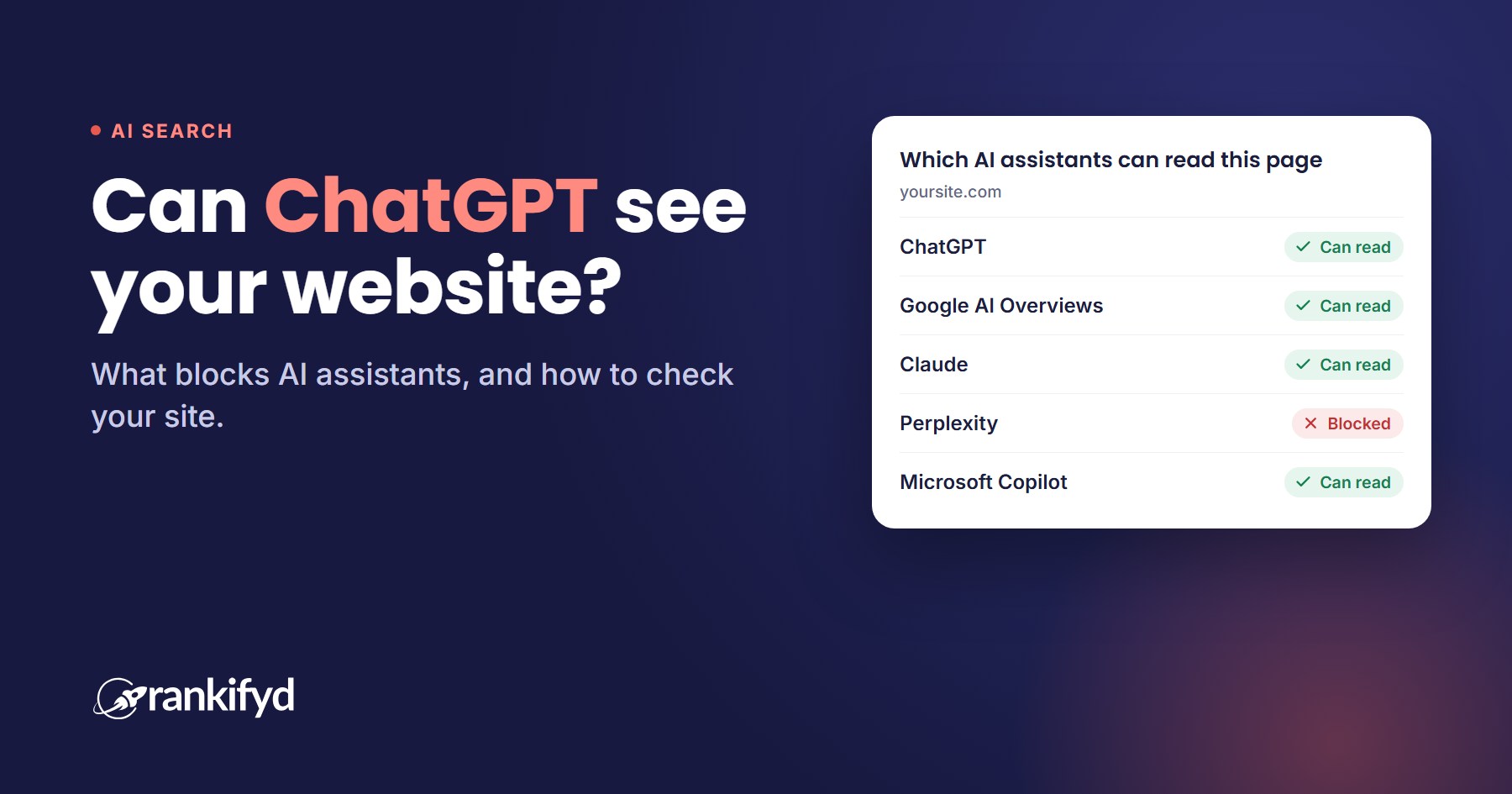
- You get a score out of 100 and a card for each of seven assistants: ChatGPT, Google AI Overviews, Claude, Perplexity, Copilot, Apple Intelligence and Meta AI. Each card shows whether that assistant appears able to access your page and, if not, what's blocking it.
The check reads your robots.txt the way crawlers do, visits your page under each AI crawler's name to test your firewall, looks for the page tags above and checks how much text is visible without JavaScript. It also checks elements that help AI understand your business, like your page title, description, main heading and structured data. Every problem comes with a plain-English fix and an example you can copy.
The AI Visibility Check is included on every plan, including Free.
How to fix the most common problems
- Blocked in robots.txt: Remove the
Disallowlines for the answer crawlers you want to allow. If you use WordPress, check your SEO plugin's settings first, since many manage robots.txt for you. - Blocked by your firewall: In Cloudflare, look for the AI bot setting (under Security or "AI Crawl Control" on newer accounts) and allow the assistants you want. Other security services have similar settings. Then run the check again.
- Page tags: Remove
noindexornosnippetfrom pages you want search engines and AI tools to find and display. In WordPress, this is usually a checkbox in your SEO plugin or under Settings, then Reading. - Content needs JavaScript: Ask your developer or website builder about "server-side rendering" or "pre-rendering", so the text is in the page when it arrives.
What this check can't tell you
Being readable is step one, but it doesn't guarantee visibility. A check like this shows whether AI assistants may be able to access your page. It can't show whether ChatGPT or any other assistant will mention or recommend you in its answers. That depends on several factors, including the relevance and quality of your content, how well your site is structured and whether other credible sources reference your business.
The good news is that those are things you can work on, and Rankifyd's other tools check related factors: speed, mobile support, accessibility, backlinks and where you rank in Google and Bing.
Quick answers
Will blocking AI training hurt my Google rankings?
No. Blocking Google-Extended doesn't affect your normal Google search results or your appearance in AI Overviews, which use the regular Googlebot. Blocking Google-Extended does keep your pages out of answers in the Gemini app.
Do I need an llms.txt file?
No. llms.txt is a proposed file that summarizes your site for AI tools. Major AI assistants don't require it, and adding one won't resolve crawler access restrictions.
How often should I check?
Run the check again whenever you change hosting, security settings, plugins or your website builder. It's also worth checking every few months. AI companies add and rename crawlers, and a single setting change can quietly block them again.
Ready to see what AI assistants can access? Start free and run the AI Visibility Check on your site.